


Webex Meetings
4.572.56K Reviews
App Specs
- Version
- Varies with Device
- Updated On
- License
- Free
- Downloads
- 100,000,000+
- Developer
- Cisco Systems, Inc.
- Categories
- Business
- Platform
- Android, iOS
Screenshots



 Analysis by AppCompare
My first useful test of a meeting app is simple: can I get from an invitation to a clear conversation without turning the first few minutes into tech support? Webex Meetings is built for that kind of work call, whether I’m at a desk or joining from a phone. It is a free business app from Cisco Systems, Inc., rated for Everyone, and its 4.5 average from around 2.2 million ratings suggests it has become a familiar option for a wide range of users.
Getting Started with Webex Meetings
First things first, setting up Webex Meetings is a breeze. All you need is a quick download from the App Store or Google Play, and you're good to go. The app guides you through the setup process with clear instructions, making it super user-friendly, even if you're not the most tech-savvy person around. Plus, it seamlessly integrates with your calendar, so you never miss a meeting.
The Interface: Clean and Intuitive
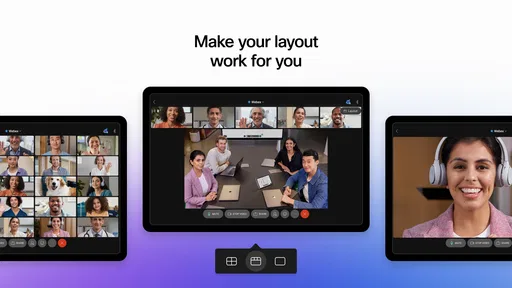
One of the first things you'll notice about Webex Meetings is its clean and intuitive interface. It's like the app designers knew exactly what we wanted. The home screen gives you quick access to upcoming meetings, and joining a meeting is as simple as tapping a button. No more fumbling around trying to find links or passwords. Everything is right where you need it.
And can we talk about the virtual backgrounds? Whether you want to look like you're in a sleek office or a tropical paradise, there's a background for every mood. It's these little touches that make using the app enjoyable, not just functional.
Features That Stand Out
Webex Meetings isn't just about video calls. It's packed with features that make remote collaboration a breeze. Screen sharing is smooth and reliable, perfect for those times when you need to present a deck or walk someone through a process. And let's not forget the real-time messaging feature, which is a lifesaver for quick clarifications during meetings.
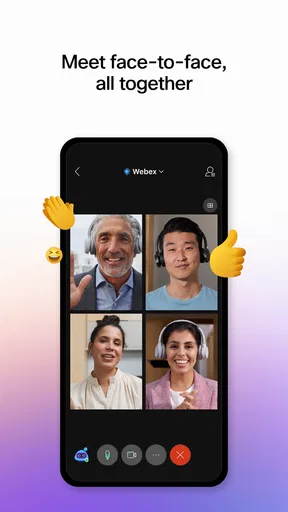
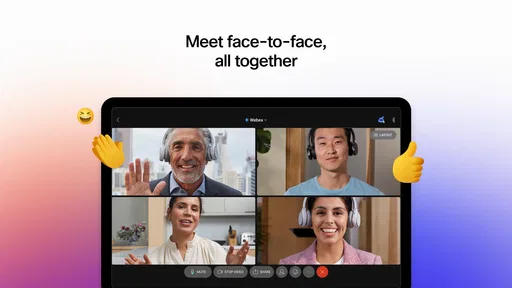
The app also supports HD video, making those face-to-face interactions as lifelike as possible. And audio quality? Crisp and clear, even if you're dialing in from a busy coffee shop. It’s like having a professional conference setup, minus the hassle and expense.
Security and Reliability
In today’s world, security is a big deal, and Webex Meetings takes it seriously. The app uses end-to-end encryption to keep your meetings private and secure. Plus, the reliability of the service is top-notch. I've used it in all sorts of environments, and it rarely skips a beat. Whether it's a spontaneous team huddle or a scheduled client presentation, you can count on Webex to deliver.
Worth Reading Before You Choose

Baby Panda World Brings Quick Play to Modern Phones, but Its Game Library Feels Busy

ESPN’s Live Game View Makes Following Close Games Easier

QuizzLand Review: A Good Fit for Short Trivia Breaks, Not Every Player

Basketball Stars: Multiplayer Is Fast, but Can It Recover When Matches Go Wrong?

WEBTOON Turns Phone Updates Into a Better Reading Routine

Link to Windows Runs on Shared Habits, Not Social Feeds
Why You'll Love It
So why should you choose Webex Meetings over other video conferencing apps? For me, it's the combination of ease of use, robust features, and dependable performance. It's like having the best of both worlds – the professionalism of a big boardroom meeting with the flexibility of being able to join from literally anywhere.
Plus, it's not just for work. I've used Webex for virtual hangouts with friends and family across the globe. The quality and stability make it a joy to use, whether you're discussing a business proposal or just catching up over coffee.
With more than 100 million installs and around 73,000 written reviews, Webex Meetings is clearly established, but popularity alone doesn’t make it the right fit for everyone. I’d recommend it most to people who regularly join meetings hosted by colleagues, clients, or organizations already using Webex. If your workday involves moving between a calendar invitation, a quick call, and a screen share, having the meeting app on your phone can remove a real source of friction. It is less compelling if you only make occasional casual calls and everyone you speak with already uses a simpler tool.
From an Invitation to a Useful First Call
For a first session, I’d start with a meeting invitation rather than exploring every option in the app. Open the meeting from your calendar, check that you have the right meeting details, and join a little before you need to speak. That gives you a moment to confirm your audio and video choices without making everyone wait. If you are joining only to listen, there is no need to turn the call into a camera test; settle in, follow the discussion, and use the meeting’s available controls as needed.
A realistic example is a project check-in that runs past the end of your commute. You can leave the laptop behind, join from your phone, listen for the decision that affects your work, and use messaging for a short clarification rather than interrupting the speaker. If a colleague needs you to explain a document, screen sharing can make the conversation more concrete. I would still avoid presenting a dense spreadsheet or making detailed edits on a small screen: joining on mobile is useful for participation, but it does not magically make a phone a comfortable workstation.
Small Habits That Make Mobile Meetings Easier
One practical habit is to decide what you need from the call before joining. If you are there to give a short update, keep the key points nearby; if you are there to review a presentation, have the relevant material ready to open. This reduces the temptation to switch between apps while someone is talking. On a phone, every extra task competes with the meeting for attention, so I find it helps to treat the call as the main activity rather than trying to answer messages and read documents at the same time.
It is also worth thinking about your surroundings before you turn on video. A quiet place and a stable connection matter more to a useful conversation than a decorative background. Virtual backgrounds can help when the room behind you is distracting, but they are a finishing touch, not a substitute for checking what other people will see. When privacy or professionalism matters, take a moment to frame the camera and remove anything you would rather not share.
Screen sharing is most effective when it has a clear purpose. I would share one relevant document or view, explain what participants should look at, and stop sharing when that part of the conversation is finished. On a small display, it can be harder to monitor both the shared material and the people in the meeting, so narrating what you are doing helps keep listeners with you. For a quick clarification, messaging may be less disruptive; for a longer walkthrough, sharing the screen gives everyone a common reference point.
Where It Fits Among Meeting Apps
Compared with lightweight calling apps, Webex Meetings feels more at home in organized work: scheduled sessions, presentations, and conversations where sharing material matters. A familiar consumer messenger may be faster when the goal is simply to call a friend who is already in that service. On the other hand, if an employer or customer sends a Webex invitation, installing the app can be the straightforward route to joining on mobile rather than trying to move the meeting to another platform.
That distinction matters because a meeting tool is only convenient when the other people can use the same meeting space. I would not ask a casual group to change its habits just to use Webex if its current calling option already works well. For teams that need a more structured meeting workflow, though, a dedicated conferencing app can be preferable to a basic voice or video call. The best choice depends less on a feature checklist than on what your coworkers and guests already use and how often you need to present or coordinate.
What to Expect When Something Feels Confusing
First-time users sometimes treat the app, the meeting invitation, and the calendar as if they were the same thing. They are connected parts of the process, but the invitation is still where you should check the meeting details, while the app is where you join and take part. If a meeting does not appear where you expect, return to the invitation and use its joining information rather than guessing at a meeting name. That simple distinction can save time, especially when you have several calls in one day.
Another common point of uncertainty is whether you need to use video throughout the call. In practice, that depends on the meeting and your role. You can prepare to participate without assuming that your camera must stay on; choose the option that suits the conversation and your surroundings. Likewise, screen sharing is not required just because the meeting includes it. I would use it when seeing a document or demonstration will help, and stick to audio and conversation when it will not.
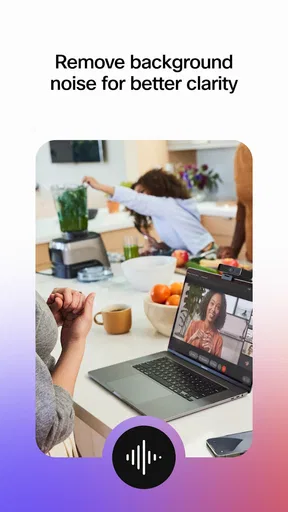
If audio is difficult to follow, first consider the environment: background noise, a weak connection, or speaking from a busy public place can undermine any meeting app. Moving somewhere quieter and using a headset, if available, can make it easier for everyone to hear. I would not rely on a phone call from a crowded café for a sensitive or detailed client discussion simply because the app can connect there. The ability to join from many places is useful, but choosing a suitable place is still part of being a good meeting participant.
Who Will Get the Most from It
This is a strong fit for remote workers, people who travel between offices, and anyone who regularly receives Webex meeting invitations. It is also useful for a colleague who needs to attend a discussion while away from a computer but wants more than a basic phone call. The app’s business focus shows in that combination of joining, communication, and presentation tools. Cisco Systems, Inc. has built a well-established meeting product, and its broad adoption—more than 100 million installs—makes it likely that many users will encounter it through work or school.
I would hesitate to make it my first choice for someone who rarely attends scheduled meetings, dislikes using a phone for work, or mainly wants informal group calls. A laptop is still the better option for long sessions, detailed note-taking, or handling several documents while presenting. People who are uncomfortable with video calls may also find that the app does not change the basic social demands of a meeting: you still need to listen, take turns, and communicate clearly. The useful question is not whether the app can do everything, but whether mobile access solves a problem you actually have.
Choosing Your Next Step
If you are unsure whether it belongs on your phone, try it the next time someone sends you a meeting invitation. Join from a quiet spot, keep the invitation handy, and focus on one task: listening, contributing a short update, or sharing a specific item. That is enough to judge whether the mobile experience suits your routine. If you find yourself using it often, you can build a simple habit around checking invitations ahead of time and choosing a place where you can participate without rushing.
Webex Meetings is free, and its Everyone age rating makes it broadly accessible, though the meeting itself may still be intended for a particular workplace or group. I like it most as a practical way to stay involved when I cannot be at my computer, not as a reason to turn every conversation into a video call. Its strongest value is the bridge between a scheduled work meeting and the reality of being away from a desk; its main trade-off is that a phone screen and a mobile setting can limit how comfortably you participate.
In a nutshell, Webex Meetings is a capable option for people who need dependable access to organized meetings while away from their desks. It brings together a clean entry point, screen sharing, messaging, and video in a business-focused app, while still asking you to choose the right device and environment for the task. Give it a try when you have a real invitation to join, and you will quickly learn whether that flexibility is useful in your own day.
So, if you haven't already, give Webex Meetings a try. Download it today and experience the convenience of seamless connectivity at your fingertips. Trust me, once you start using it, you'll wonder how you ever managed without it.
Pros
- User-friendly interface
- easy to navigate.
- High-quality video and audio streaming.
- Supports large meetings up to 1000 participants.
- Seamless integration with calendars.
- Mobile and desktop applications available.
Cons
- Requires a stable internet connection.
- Limited features in the free version.
- Can consume significant device resources.
- Occasional connectivity issues reported.
- Setup can be complex for new users.
FAQs for Webex Meetings
What are the primary features of Webex Meetings?
Webex Meetings offers a range of features designed for seamless online collaboration. These include high-definition video conferencing, screen sharing, and an interactive whiteboard. Additionally, it provides calendar integrations, recording capabilities, and robust security measures to ensure privacy. The app is suitable for both small team meetings and large-scale webinars, making it versatile for various professional needs.
Is Webex Meetings free to use?
Webex Meetings offers a free plan that includes basic features, such as hosting meetings with up to 100 participants for a limited time. However, for advanced features like cloud recording, more participants, and extended meeting durations, a paid subscription is required. The pricing plans are tiered to accommodate different business needs.
How does Webex Meetings ensure security and privacy?
Webex Meetings prioritizes security with end-to-end encryption, secure meeting IDs, and password protection. It also includes features like meeting locks and authenticated attendees only. Cisco, the parent company, regularly updates the platform to comply with international security standards, ensuring that user data remains protected and confidential.
Can I use Webex Meetings on multiple devices?
Yes, Webex Meetings is available on multiple devices, including Android and iOS smartphones, tablets, and desktop computers. The app allows seamless transition between devices, ensuring that users can join meetings from anywhere. It supports cross-platform functionality, so you can switch between devices without interrupting your meeting.
How reliable is Webex Meetings for large-scale events?
Webex Meetings is highly reliable for large-scale events, offering features designed to handle large numbers of participants without compromising on quality. With capabilities like breakout rooms, polling, and Q&A sessions, it ensures interactive and engaging webinars. Cisco's robust infrastructure supports high performance and stability, making it a dependable choice for major events.


